Start from a template
Last updated November 11, 2026
A template gives you a finished diagram with its data, labels and colors. Replace the data with your own and keep the rest.
Templates are grouped into Financial statement templates, such as income statements, cash flow statements and balance sheets, and Other templates.
In the editor#
- Select File > New.
- In Choose a template, select a template.
- Select Create a new diagram.
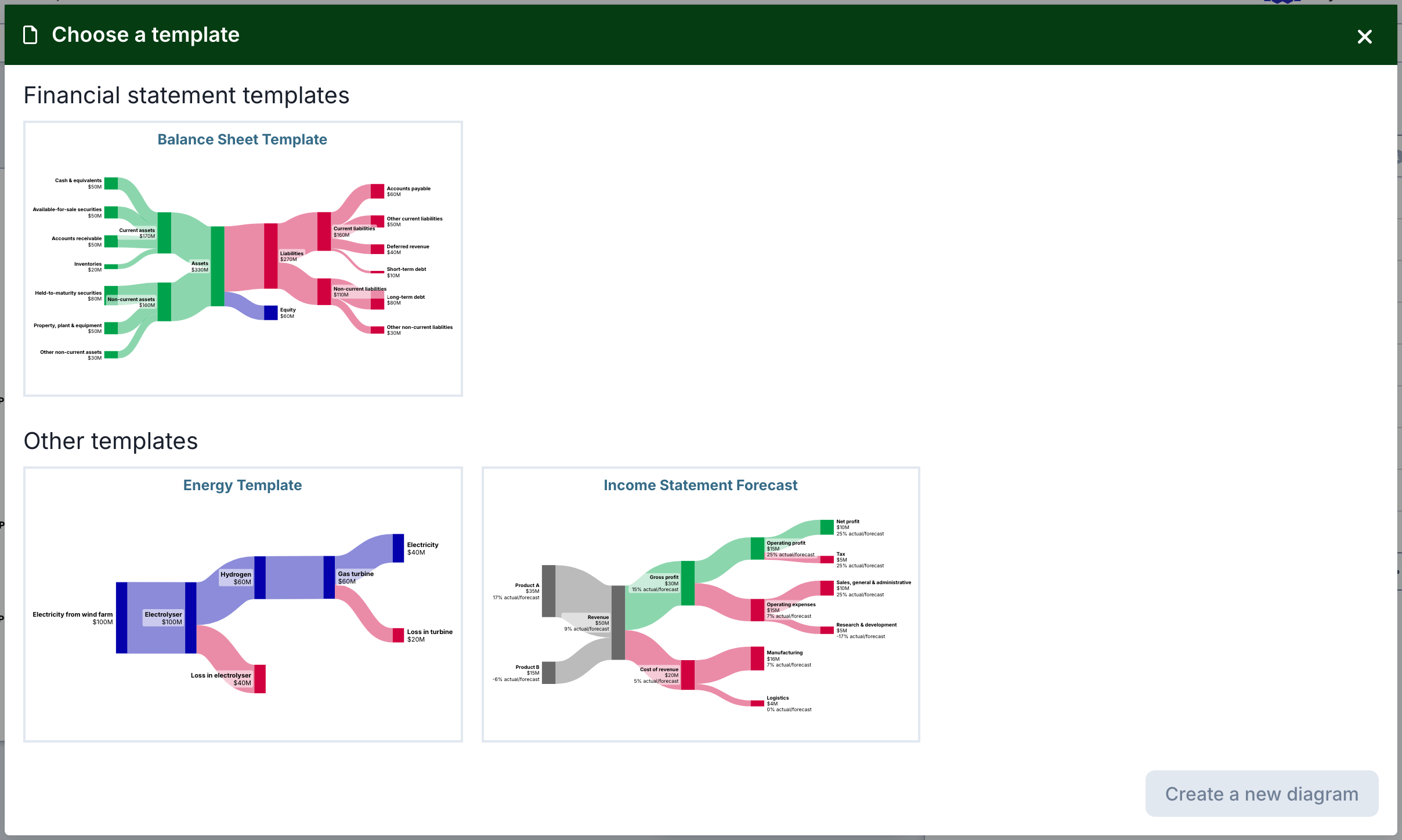
The new diagram opens in the editor. From My diagrams, select Create new > From template to do the same.
If you aren't signed in, select File > Browse templates, select a template and select Open template.
On the website#
- Go to sankeyart.com/sankeys/templates/ and select a template from the list.
- Select Use template.
If you're signed in, SankeyArt adds a copy of the template to your diagrams and opens it in the editor. If you aren't, the template opens in the editor so you can try it out.
Start from a public company's diagram#
SankeyArt publishes diagrams of the financial statements of public companies at sankeyart.com/sankeys/public/. To use one as a starting point, open it and select Copy and edit diagram. If you're signed in, the copy is added to your diagrams with "(copy)" after its name.
If you can't create a new diagram#
Your plan includes a number of diagrams. When they are all in use, New asks you to upgrade your subscription or to delete some of your diagrams first. See Change or cancel your subscription.