Export as PNG or SVG
Last updated November 11, 2026
You can download a diagram as a PNG image or as an SVG vector graphic, for example for a report or a presentation.
Download a diagram#
- Open the diagram in the editor.
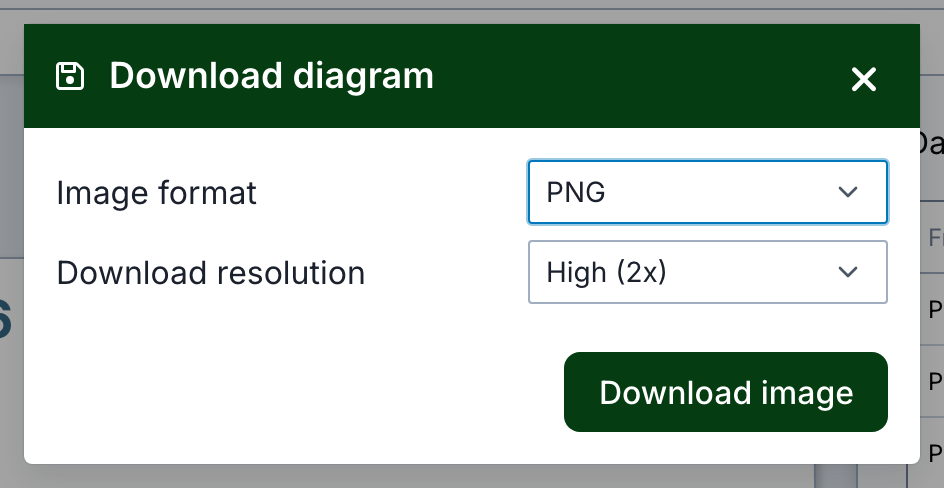
- Select File > Download.
- In Image format, select PNG or SVG.
- For a PNG, select the Download resolution.
- Select Download image.
| Format | Subscription needed |
|---|---|
| PNG in Original or High (2x) resolution | No |
| PNG in Ultra (4x) resolution | Yes |
| SVG, a vector graphic that stays sharp at any size | Yes |
Without a subscription, the dialog shows Subscribe for SVG or Subscribe for Ultra (4x) instead of Download image when you select these options.
Image size#
A PNG is as large as the diagram's canvas times the resolution. For example, a Medium (800×480px) canvas in High (2x) gives an image of 1600×960 pixels. To change the canvas size, open the Layout menu and change the Original size.
PNG downloads are limited to 40 megapixels. Resolutions that would be larger are greyed out. If even Original is too large, reduce the canvas size. With a subscription, the diagram is then downloaded as an SVG instead.
Watermark#
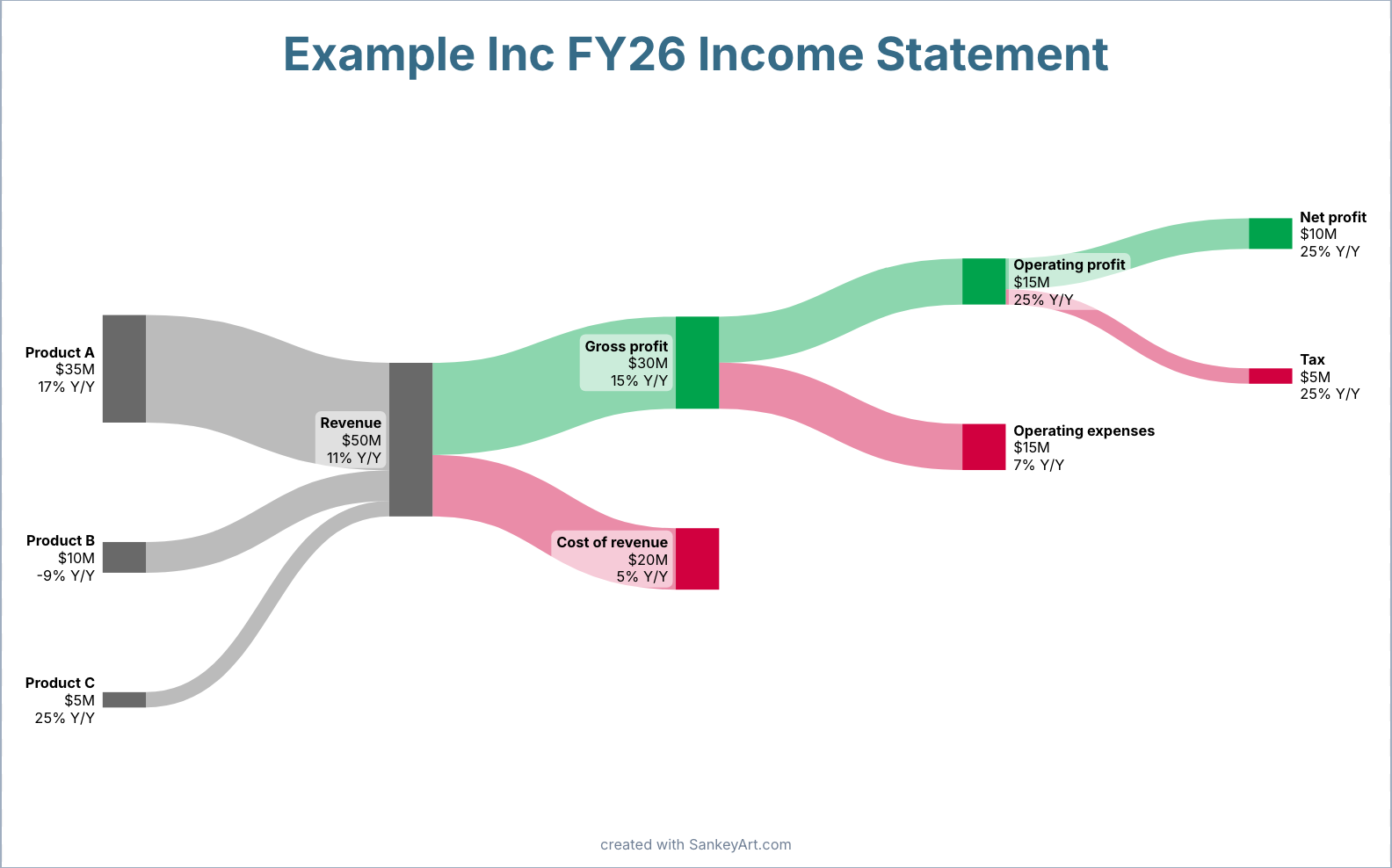
Diagrams of users without a subscription show a SankeyArt watermark, the line "created with SankeyArt.com" at the bottom, and so do their downloads. To remove it, open the View menu and select Remove watermark to subscribe.
Other ways to use a diagram#
- PowerPoint: insert the diagram with the add-in and keep it up to date. See Insert and update diagrams in PowerPoint.
- Websites: select File > Share, then Embed, and copy the HTML embed code. Embed is available once Anyone with a link or Organization members is set to something other than No access.