Invite members and manage seats
Last updated November 11, 2026
This article shows how to invite colleagues to your organization and how to change the number of seats you pay for. Inviting members needs the Business plan or an enterprise plan.
How seats work#
Each administrator and editor uses one seat. Billing admins don't use a seat. On Organization, under Members, you see how many seats are used, for example "2 of 3 seats used". Members without a seat are marked "no seat".
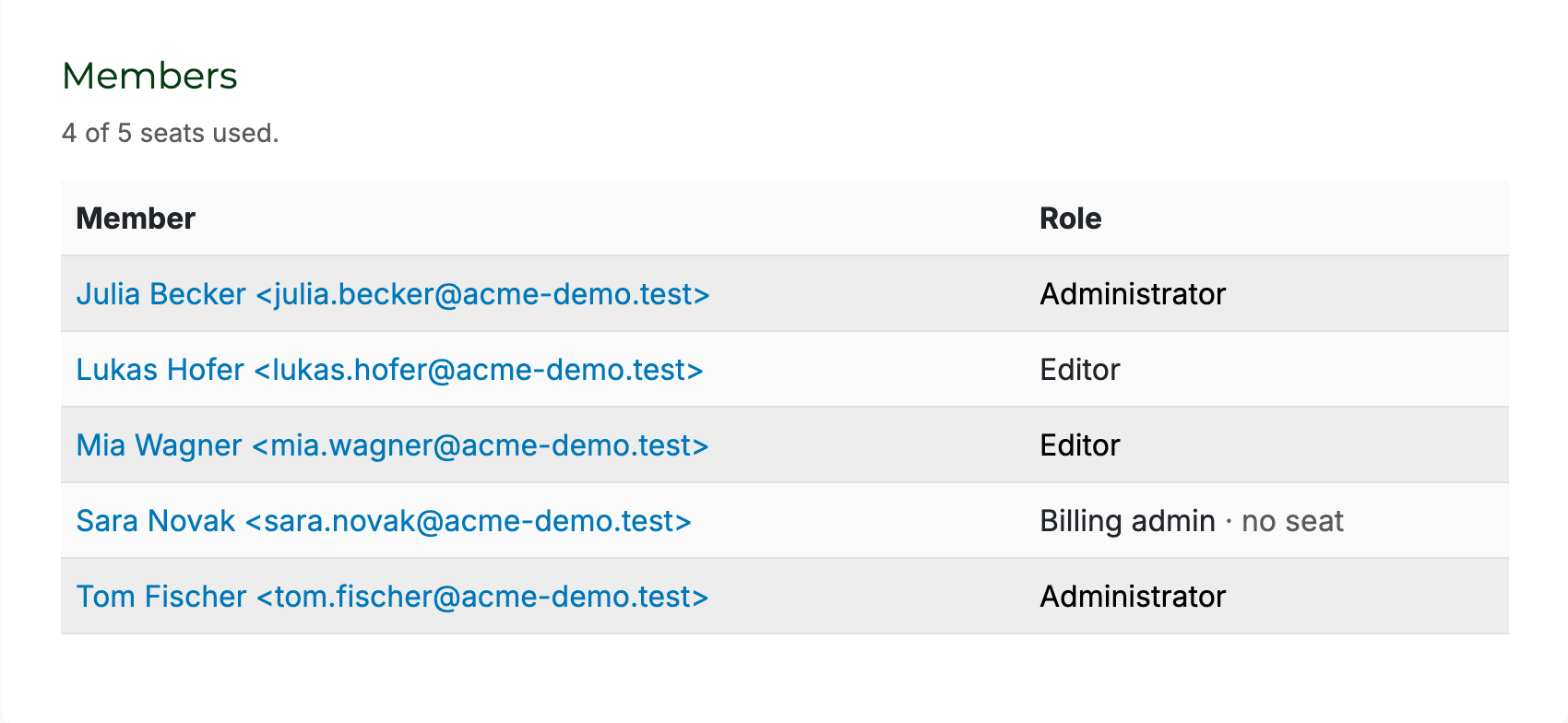
A pending invitation for an administrator or editor reserves a seat until it is accepted or canceled. A pending invitation for a billing admin doesn't.
Invite a member#
Administrators and billing admins can invite members:
- Go to Organization.
- Under Invite members, enter the colleague's email address.
- Select a role: Administrator, Editor or Billing admin (no seat, no diagrams). See Roles and permissions.
- Select Send invitation.
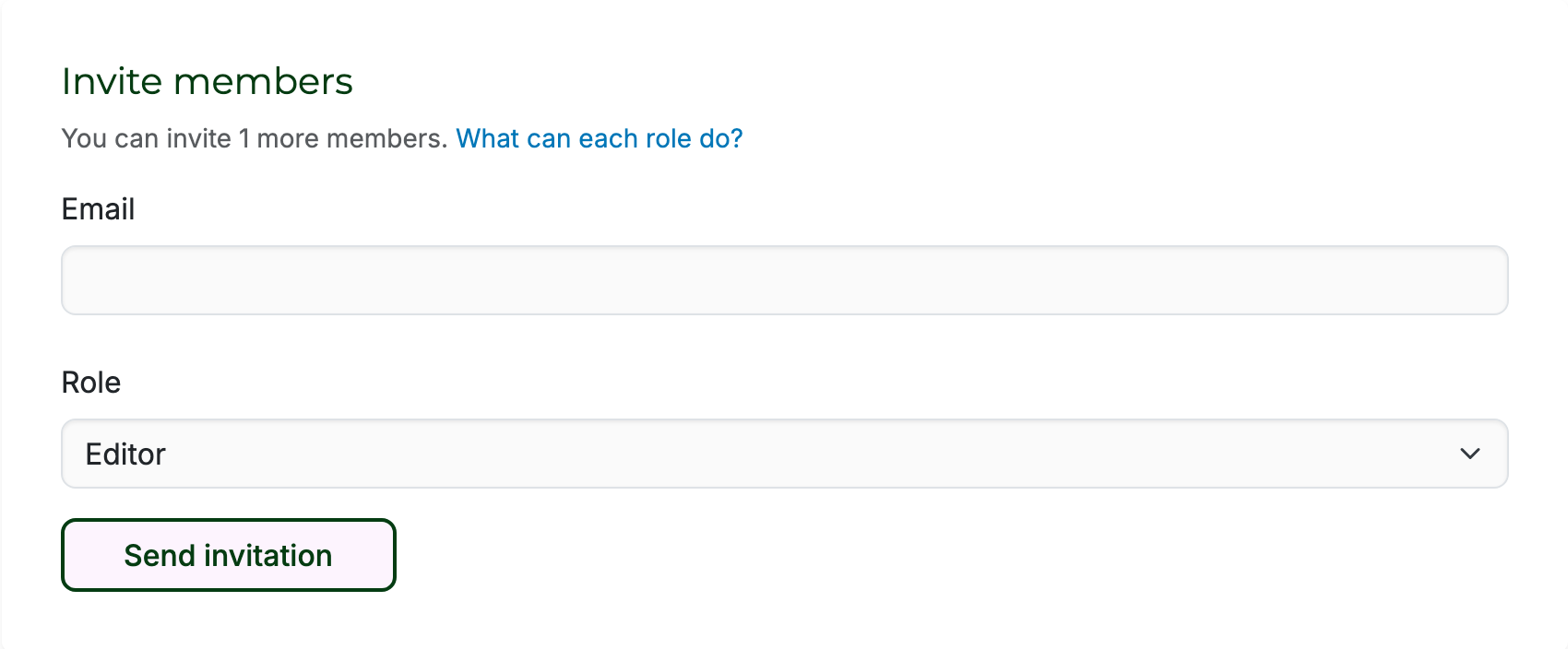
Your colleague gets an email with a link. They sign up or log in, then accept the invitation.
When all seats are in use, you can only invite a billing admin: select invite a billing admin, enter the email and select Invite billing admin. To invite an administrator or editor, add a seat first.
Accepting an invitation#
Each person can be in only one organization. When your colleague accepts:
- If they have their own organization with just themselves and no subscription, it is deleted. Their diagrams belong to them, not to the organization, so they keep them.
- If they are a member, but not an administrator, of another organization, they leave it.
- If they are an administrator of an organization that has or had a subscription, they can't accept. They have to leave that organization first.
Pending invitations#
Pending invitations are listed under Pending invitations on Organization. Select Resend invitation to send the email again, or Cancel invitation to withdraw it and free its seat.
Add or remove seats#
- Go to Subscription.
- Under Update seats, move the slider to the number of seats you need.
- Select Update seats.
- Confirm the change in the Stripe customer portal.
When you add seats, you pay for them for the rest of the current billing period right away. When you lower the number of seats, the unused part is credited to your next invoices.
For more than 50 seats, contact sales@sankeyart.com for a quote. On an enterprise plan, contact us to change the number of seats.
Lowering the number of seats can remove members. If more members use a seat than your plan has, SankeyArt removes members until it fits, editors first, then administrators. Billing admins are never removed. Removed members and the organization's administrators get an email. Remove the members you choose yourself before you lower the seats.
To free a seat without removing anyone, an administrator can switch to billing admin. See Let someone else handle billing.
Remove a member#
- Go to Organization and select the member.
- Select Remove from organization.
- Select I understand, remove member.
The member gets an email and has to be invited again to come back. Their seat is free right away, but your bill only changes when you lower the number of seats.
Removed members keep their diagrams. They move with them to a new organization of their own, so the rest of your organization no longer sees the diagrams they shared.
To leave an organization yourself, select your own name and then Leave organization. The last administrator or billing admin can't leave.