Labels and number formats
Last updated November 11, 2026
This article explains how to change the labels of your nodes: the numbers, the units and the text.
What a label shows#
Each node's label has up to three lines:
- The node's name.
- The amount.
- The comparison, for example the change from last year. See Year-over-year comparison.
To show or hide them, open the View menu and select Show diagram labels or Show comparison line. Show diagram title shows or hides the title.
Change the label settings#
Open the Labels menu. The settings apply to all nodes of the diagram.
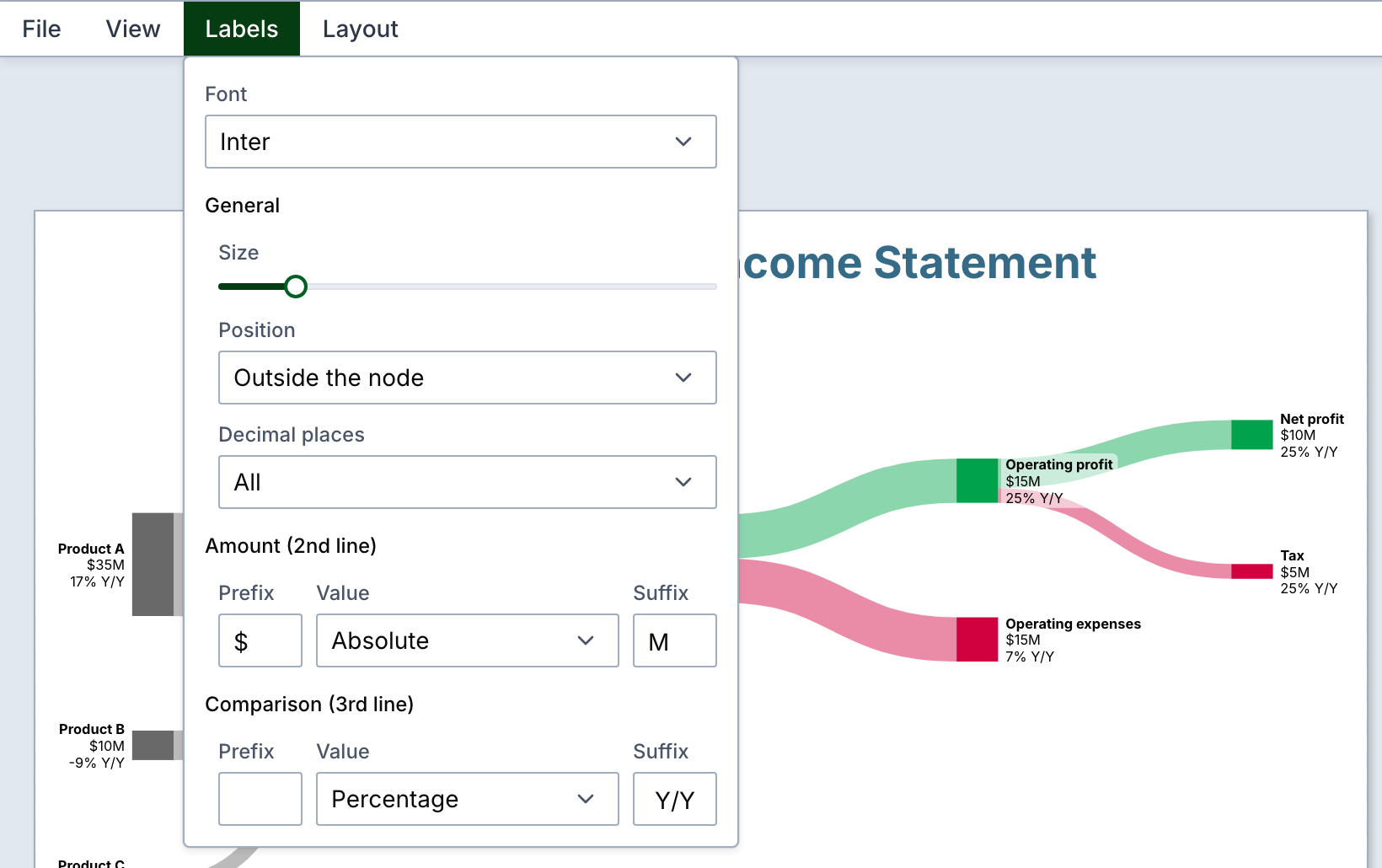
| Setting | What it does |
|---|---|
| Font | The font of the diagram. See Colors, fonts and branding. |
| Size | The font size of the labels. |
| Position | Where the labels sit. See below. |
| Decimal places | All, or a fixed number from 0 to 3. |
All shows as many decimal places as the amount with the most decimal places in your data.
Label position#
- Before the node: labels on the left of the nodes.
- After the node: labels on the right of the nodes.
- Outside the node: labels on the outer side, left of the nodes in the left half and right of them in the right half.
- Inside the node: labels toward the center of the diagram.
Currency symbols and units#
In Amount (2nd line), the Prefix is shown before each number and the Suffix after it. For example, a prefix of "$" and a suffix of "B" show 123 as $123B.
The prefix and suffix don't change the numbers: enter your data in the unit you want to show.
Numbers use a comma to group thousands and a dot for decimals, for example 1,234.5.
Show percentages instead of amounts#
In Amount (2nd line), the Value sets what the second line shows:
- Absolute: the node's amount.
- % of neighbor: the node's amount as a percentage of the node it connects to. This works for nodes with a single flow in or a single flow out. Other nodes show their amount.
- % of highest amount: the node's amount as a percentage of the largest node. The largest node shows its amount.
Percentages are rounded to whole numbers.
Write your own label text#
You can replace the second or third line of a single node:
- Select the node in the diagram.
- In Edit node, select 2nd line custom text or 3rd line custom text.
- Enter the text.
The custom text only changes the label. The flows keep their amounts. If you leave the custom text empty, the line is hidden.
To change the first line, change the node's Label. This renames the node in all its flows.
Change the title#
Select the title in the diagram to open Edit title. The title is made from the Company name, the Fiscal year, the Reporting period and the Financial statement type. To write your own, select Use custom title. Size and Color change the title's look.