Colors, fonts and branding
Last updated November 11, 2026
This article explains how to change the look of a diagram, and how to save your brand colors so that new diagrams use them.
Change a node's color#
- Select the node in the diagram.
- In Edit node, select Color.
- Pick one of your Brand colors, one of the Other diagram colors, or select Use different color to pick any color.
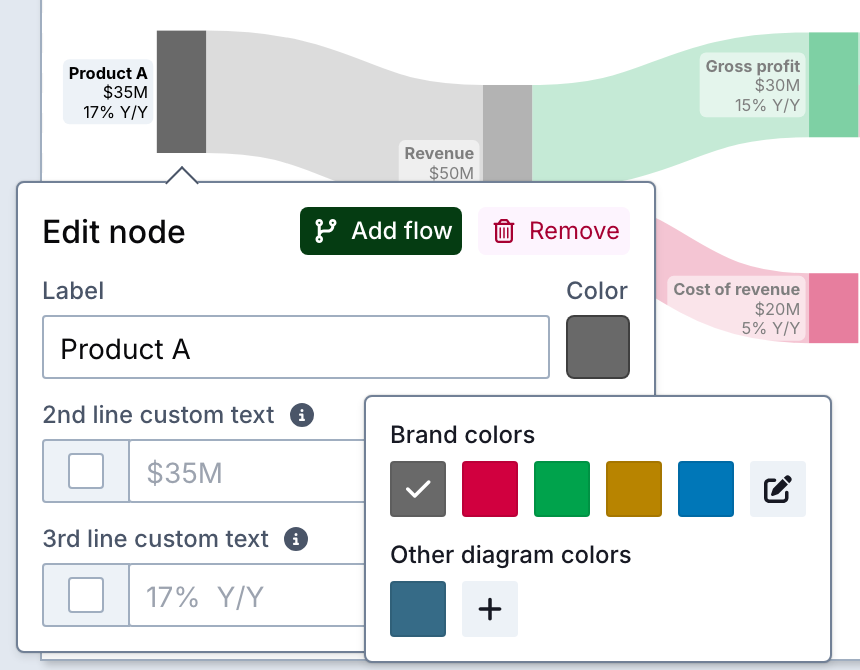
A flow takes the color of the node it flows into.
Change the font#
Open the Labels menu and select a Font. It applies to all text in the diagram. You can choose Inter, JetBrains Mono, Lato, Merriweather, Montserrat, Nunito, Open Sans, Poppins, Roboto or Source Code Pro.
For the font size of the labels, use Size in the same menu. For the title, select the title in the diagram and use Size and Color in Edit title.
Change the background and layout#
Open the Layout menu:
| Setting | What it does |
|---|---|
| Original size | The size of the canvas: Small (352×300px), Medium (800×480px), Large (960×600px) or Custom, where you enter the width and height in pixels. |
| Backdrop | The background color. You can also make it transparent. |
| Node width | How wide the nodes are. |
| Node height | How much of the canvas height the nodes take up. Higher values make the nodes and flows thicker. |
| Node spacing | The space between the nodes of a column. |
Save your brand colors#
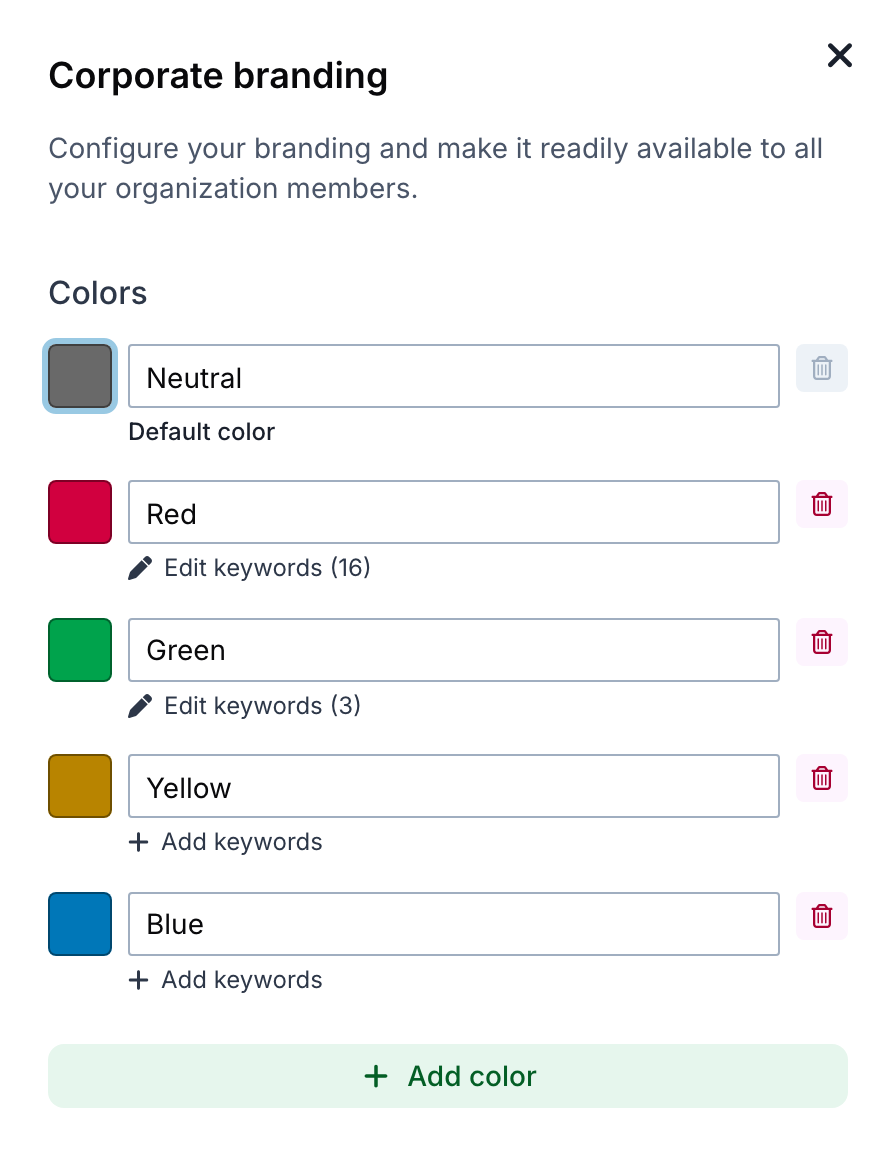
Corporate branding saves your brand colors for your whole organization. They appear under Brand colors whenever a member picks a color. Only administrators and billing admins can change them. See Roles and permissions.
- Open the View menu and select Corporate branding.
- The first time, select Create branding. SankeyArt starts with five colors: Neutral, Red, Green, Yellow and Blue.
- Change a color with its color picker, and give it a name in Color name.
- Select Add color for more colors, or the trash icon to remove one. You need at least 3 colors and can have up to 15.
- Select Save changes.
Default color and keywords#
The Default color is used for new nodes. You can't remove it.
The other colors can have keywords. Select Add keywords or Edit keywords under a color. New nodes whose name contains a keyword get that color. If several keywords match, the longest one wins. For example, the starting branding colors nodes with "cost" or "expense" red and nodes with "profit" or "income" green.
Keywords only set the color of new nodes. To change an existing node, change its Color.